
Extract Any Track from MKV Files in Seconds
MKVcleaver pulls video, audio, subtitles, chapters, and attachments out of MKV containers — one file or hundreds at once.
What Makes MKVcleaver Different
A focused tool built for one job: pulling tracks out of MKV containers. No bloat, no re-encoding, no guesswork.
Batch extraction
Load dozens of MKV files at once and extract selected tracks from all of them in a single run. Each file can have its own track selection if you need per-file control.
Drag and drop
Drop MKV files directly into the window. MKVcleaver reads the container headers and shows you every track inside, ready for selection.
Video track extraction
Pull raw video streams (H.264, H.265, VP9, AV1) out of MKV files without re-encoding. The original codec data stays bit-for-bit identical.
Audio track extraction
Extract audio in its native format: FLAC, AAC, DTS, AC3, Opus, or Vorbis. MKVcleaver also supports raw FLAC output for lossless audio tracks.
Subtitle extraction
Pull SRT, ASS, SSA, or PGS subtitle tracks from any MKV file. Useful for subtitle editors who need to fix timing or translate text before re-muxing.
Chapters and attachments
Extract chapter markers as XML files and pull embedded fonts, cover art, or other attachments stored inside MKV containers.
VFR timecode support
Detect variable frame rate content and export timecodes separately. This matters for anime and screen recordings where the frame rate changes throughout the file.
Custom output naming
Set file naming patterns for extracted tracks so output files are already organized the way you want. No manual renaming after extraction.
Automatic codec detection
MKVcleaver reads each track’s codec ID and assigns the correct file extension automatically. You get properly named .h265, .flac, .srt files without configuring anything.
Language tagging
Audio and subtitle tracks keep their language metadata during extraction. MKVcleaver reads the BCP47 language tags from the MKV container and preserves them.
Flexible output paths
Save extracted tracks to the same folder as the source file, or pick a custom target folder. Batch jobs respect the output path you set for each file.
Track info on demand
Click any track to see codec details, resolution, sample rate, channel layout, and language. Helpful when you are working with files that have multiple audio or subtitle tracks.
System Requirements
MKVcleaver runs on most Windows machines without heavy hardware. Here is what you need.
| Component | Minimum | Recommended |
|---|---|---|
| Operating System | Windows 7 SP1 (32-bit or 64-bit) | Windows 10 or 11 (64-bit) |
| Processor | 1 GHz single-core (x86 or x64) | Dual-core 2 GHz or faster |
| RAM | 512 MB | 2 GB or more |
| Disk Space | 50 MB for installation | 500 MB+ free (for extracted output files) |
| Display | 1024 x 768 resolution | 1280 x 720 or higher |
| .NET Framework | .NET Framework 4.0 | .NET Framework 4.8 |
| Dependencies | MKVToolNix installed (mkvextract.exe) | MKVToolNix latest stable release |
Required: MKVToolNix
MKVcleaver is a graphical front-end that calls MKVToolNix’s mkvextract utility behind the scenes. You must install MKVToolNix separately and point MKVcleaver to its installation folder. Both 32-bit and 64-bit builds of MKVToolNix work. Download it free from mkvtoolnix.download.
Ready to get started? Download MKVcleaver and begin extracting tracks.
What Is MKVcleaver?
A lightweight Windows tool that pulls video, audio, subtitles, and more out of MKV containers without re-encoding.
Built for MKV extraction
MKVcleaver is a free, open-source Windows application that acts as a graphical front-end for MKVToolNix’s mkvextract command-line tool. Instead of memorizing terminal commands, you load your MKV files, check the tracks you want, and hit extract. That is the entire workflow.
Developed by Ilia Bakhmoutski, the MKVcleaver program handles both single-file and batch extraction. Load one file to grab a specific subtitle track, or queue up hundreds of MKVs and pull out every audio stream in one pass. Each file shows its full track listing — codec, language, resolution — so you always know what you are working with before you start.
Who actually uses this?
Subtitle editors reach for MKVcleaver when they need to extract SRT or ASS files from MKV containers for translation or timing adjustments. People with large media libraries use the batch mode to strip out commentary tracks or foreign-language audio they do not need. Content creators pull raw video streams for re-editing in tools like Premiere or DaVinci Resolve.
The MKVcleaver app outputs each track as a separate file with the correct extension — .h265 for HEVC video, .flac for lossless audio, .srt for subtitles, and so on. It also handles chapters, attachments (like embedded fonts), tags, and timecodes for variable frame rate content.
How it fits in
MKVcleaver requires MKVToolNix installed on your system, specifically the mkvextract.exe binary. On first launch, you point the program to that executable, and you are set. The tool for Windows supports both 32-bit and 64-bit builds. Version 0.8.0.2, released November 2025, is the latest available release under the GPL license.
Batch processing
Queue multiple MKV files and extract selected tracks from all of them at once, with per-file override options.
Full track visibility
See codec, language, and format details for every track inside your MKV before deciding what to extract.
Smart file naming
Customizable output names with automatic codec-based extensions. Saves to source folder or any target directory.
VFR timecode support
Detects variable frame rate content and extracts timecodes, so your audio stays in sync after demuxing.
Ready to start extracting? Download MKVcleaver or jump to the setup guide.
Download MKVcleaver
Get the latest portable build of MKVcleaver for Windows. No installer required — just extract and run.
MKVcleaver for Windows (64-bit)
Download MKVcleaver v0.8.0.2 · 4.0 MB · Windows 64-bitMKVcleaver needs mkvextract.exe from the MKVToolNix package to work. If you do not have MKVToolNix installed, grab it from mkvtoolnix.download first. On first launch, MKVcleaver will ask you to point it to the mkvextract location.
6a9e2f36e739934d6ece5963b6bc120b
Need help setting things up? Check the getting started guide for a walkthrough.
Getting Started with MKVcleaver
From download to your first extraction in about ten minutes. This walkthrough covers everything you need to pull video, audio, and subtitle tracks from MKV files.
Head to our download section above to grab MKVcleaver. The current release is version 0.8.0.2, released in November 2025. The download is a single portable executable (MKVCleaver_x64_v0802.exe) at roughly 4 MB, so it should take just a few seconds on most connections.
MKVcleaver used to ship as a traditional Windows installer, but the developer has phased that out. The current distribution is portable only, meaning there is no .msi or setup wizard to deal with. You get one .exe file, and that is the whole program. Only a 64-bit build is available now, which covers Windows 10 and Windows 11 systems.
Before you download MKVcleaver itself, you also need two separate programs installed on your machine: MKVToolNix (which provides the mkvextract engine that MKVcleaver calls behind the scenes) and MediaInfo (used for reading file metadata). Without both of these, MKVcleaver will not function.
Download MKVToolNix from mkvtoolnix.download and MediaInfo from mediaarea.net. Both are free. Install them before running MKVcleaver for the first time.
Since MKVcleaver is a portable application, there is no installer to click through. The “installation” is just placing the file somewhere convenient:
- Create a folder for the program. Something like
C:AppsMKVcleaverorC:ToolsMKVcleaverworks well. Avoid putting it inside Program Files, since that folder has extra permission restrictions on Windows. - Move or copy the downloaded
MKVCleaver_x64_v0802.exeinto that folder. - Double-click the .exe to launch it. That is it.
If Windows SmartScreen pops up with a blue warning that says “Windows protected your PC,” click More info and then Run anyway. This happens because MKVcleaver is a smaller open-source project that does not carry a paid code-signing certificate. The program is safe and distributed under the GPL license.
For MKVToolNix, the installation is more traditional. Download the Windows installer from the official site, run it, and accept the default settings. The typical install path is C:Program FilesMKVToolNix. You will find mkvextract.exe inside that folder. Make a note of this path because MKVcleaver will ask for it.
MediaInfo installs the same way. Download the GUI version from mediaarea.net, run the installer, and accept defaults. MKVcleaver will find it automatically if you install it to the default location.
If you had an older installer-based version of MKVcleaver, uninstall it first through Windows Settings before switching to the portable version. Then put the portable .exe in a fresh folder to avoid conflicts with leftover config files.
On first launch, MKVcleaver creates a settings file in the same directory as the executable. This means all your preferences stay with the program folder, making it easy to back up or move to another machine. Just copy the whole folder.
When MKVcleaver starts for the first time, it needs to know where your MKVToolNix installation lives. If MKVToolNix is installed at the default path (C:Program FilesMKVToolNix), MKVcleaver may detect it automatically. If not, you will see a prompt asking you to locate mkvextract.exe.
To set or change this path manually, open Options from the menu bar. Look for the MKVToolNix directory setting and browse to the folder containing mkvextract.exe. Click OK to save. MKVcleaver will remember this between sessions.
A few settings worth adjusting right away:
- Output directory – By default, MKVcleaver saves extracted files to the same folder as the source MKV. If you want everything going to one place, set a custom target folder through the output path option in the main window. Something like
D:Extractedkeeps things organized. - File naming – MKVcleaver supports custom filename templates for extracted files. You can configure this under the file naming options. The default naming is usually fine, but if you are processing TV show episodes and want files sorted by name, adjust the template to include the original filename plus the track type.
- Raw FLAC output – If you plan to extract audio tracks that use FLAC encoding, check the raw FLAC option. This outputs the audio in its original FLAC format instead of wrapping it in another container.
MKVcleaver remembers its window position, size, and all settings between sessions. Once you configure it the way you like, you will not need to touch these options again.
Let us walk through extracting subtitle and audio tracks from a batch of MKV files. This is the most common use case, and it shows off what MKVcleaver does best.
Loading files: Click “Open MKV files to process…” in the toolbar, or just drag and drop your MKV files directly into the file list panel at the top of the window. MKVcleaver handles multiple files at once, so you can select an entire season of a show if you want. Each file appears as a row in the list, showing its name and size.
Selecting tracks: Click on any file in the list. The track selection area below will display every track contained in that MKV: video, audio, subtitles, chapters, attachments, and tags. Each track shows its type, language, and codec (for example, “Audio – English – FLAC” or “Subtitle – English – SRT”). Tick the checkboxes next to the tracks you want to extract.
For batch processing, you can apply the same track selection across all loaded files. This is where MKVcleaver saves real time. Instead of running mkvextract on each file individually from the command line, you set your preferences once and let the program handle every file in the queue.
Running the extraction: Once your tracks are selected and your output folder is set, click the Extract button. A progress bar appears at the bottom of the window, and MKVcleaver calls mkvextract in the background for each file. The status bar updates to show which file is being processed. When finished, your extracted files will be in the output folder, named according to your filename template, with correct file extensions assigned automatically based on the codec (e.g., .srt for SubRip subtitles, .aac for AAC audio, .h265 for HEVC video).
Need to extract different tracks from different files? MKVcleaver supports per-file setting overrides. Click on a specific file, adjust its track selection, and those changes apply only to that file while the rest follow the batch settings.
To verify your results, check the output folder. MKVcleaver assigns file extensions automatically based on the track codec. Video tracks become .h264, .h265, or .avi files depending on the encoding. Audio tracks become .aac, .flac, .dts, or .ac3. Subtitles become .srt, .ass, or .sub. Chapters export as XML files.
Keep MKVToolNix updated. MKVcleaver relies on the mkvextract binary from MKVToolNix, and newer versions of MKVToolNix improve support for recent codecs. If you run into extraction errors with newer MKV files, updating MKVToolNix usually fixes it.
Use custom codec extensions. If MKVcleaver assigns the wrong file extension to an extracted track, you can edit the extension mapping. Go to Tools → Edit Extensions. You can also use Tools → Get Codec(s) From File to identify exactly which codecs are present in a file before adding custom mappings. Custom extensions are stored in a custom.ini file next to the executable.
VFR timecode extraction. Working with variable frame rate content? MKVcleaver can extract timecode tracks from VFR MKV files. This is useful if you need to remux the video later and want to preserve the original timing. Check the timecodes option in the track list.
Avoid extracting to the same folder as your sources when working with large batches. Mixing source MKVs and extracted files makes cleanup harder. Set a dedicated output directory instead.
Common mistake: forgetting to install MKVToolNix before running MKVcleaver. If MKVcleaver opens but nothing happens when you try to extract, double-check that the MKVToolNix path is configured correctly under Options.
For help beyond this guide, the official MKVcleaver page at blogs.sapib.ca/apps/mkvcleaver has additional documentation. The VideoHelp forums also have an active thread where users discuss extraction issues and share tips. If you run into a specific codec problem, MKVToolNix’s own documentation at mkvtoolnix.download covers the supported formats in detail.
Ready to start extracting? Download MKVcleaver and try it with your first MKV file.
Screenshots
See MKVcleaver in action. Click any image to view it full size.


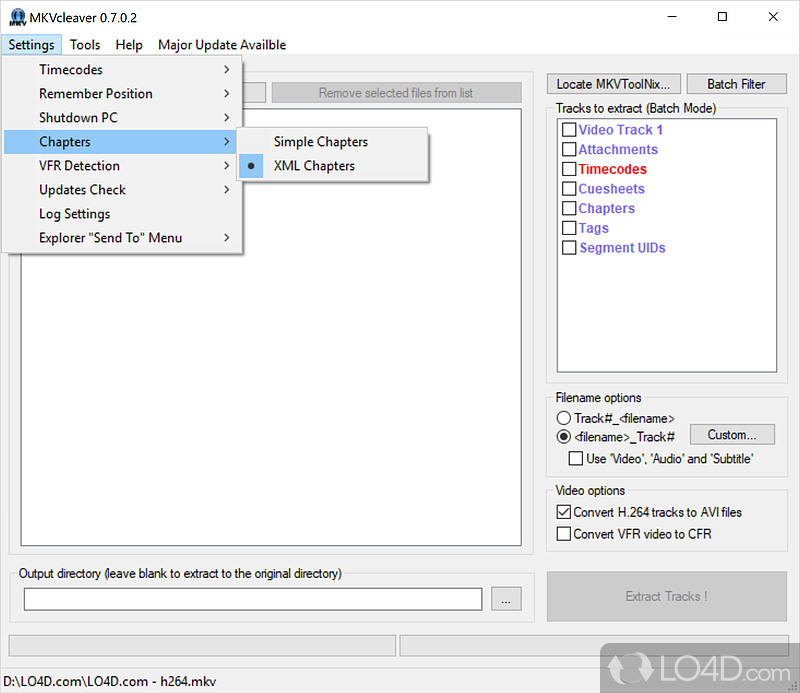

Screenshots from MKVcleaver v0.8.0 running on Windows
Frequently Asked Questions
Answers to real questions from the MKVcleaver community, covering safety, setup, extraction issues, and more.
Is MKVcleaver safe to download and free from malware?
Yes, MKVcleaver is safe. The program has been distributed through its official site at blogs.sapib.ca since 2011 and is listed on trusted software directories like VideoHelp, Softpedia, and Doom9 forums. The installer weighs about 7.8 MB and does not bundle adware, toolbars, or third-party offers. MKVcleaver itself does not perform any extraction on its own — it builds command-line calls to mkvextract.exe from the MKVToolNix suite, which is open-source and regularly audited by its developer Moritz Bunkus.
Windows SmartScreen may show a warning when you first run the installer because the executable is not code-signed with an EV certificate. This is common with free, independently developed software. You can safely click “More info” and then “Run anyway.” If your antivirus flags the file, it is almost certainly a false positive; submit the file to your AV vendor for analysis to confirm.
- Download only from the official site or reputable mirrors like VideoHelp and Free-Codecs
- Verify the file size is approximately 7.8 MB — anything much larger may include unwanted software
- Run a scan with Windows Defender or your preferred antivirus after downloading
- Avoid third-party “download wrapper” sites that repackage the installer
Pro tip: If your firewall blocks MKVcleaver on first launch, it is trying to check for updates. You can allow access or disable the auto-update check under Options > Settings without affecting functionality.
For the official download link, visit our download section.
Where is the official safe download for MKVcleaver?
The official source for MKVcleaver is the developer’s website at blogs.sapib.ca/apps/mkvcleaver/. The latest version, 0.8.0.2, was released on November 20, 2025. You can also find verified copies on VideoHelp.com (videohelp.com/software/MKVcleaver), which has tracked every release since the early versions, and on Free-Codecs.com.
A common mistake is downloading MKVcleaver from random “freeware” aggregator sites that wrap the installer in their own downloader. These wrappers sometimes bundle browser extensions or change your default search engine. The legitimate installer is a single .exe file around 7.8 MB for the 64-bit version. If the download is 20 MB or larger, or if it comes as a .zip containing multiple files you did not expect, close it immediately.
- Official site: blogs.sapib.ca/apps/mkvcleaver/mkvcleaver-downloads/
- VideoHelp mirror: videohelp.com/software/MKVcleaver
- Both 32-bit and 64-bit installers are available on the download page
- The portable version from PortableFreeware.com is also legitimate
Pro tip: Bookmark the official download page so you always go straight to it when updating, rather than searching and risking a repackaged copy.
Get MKVcleaver directly from our download section, which links to the official source.
Does MKVcleaver work on Windows 11, Windows 10, and older versions?
MKVcleaver runs on Windows 11, Windows 10, Windows 8.1, and Windows 7 (both 32-bit and 64-bit editions). The program is a .NET Framework application, so it requires .NET Framework 4.5 or later, which comes pre-installed on Windows 10 and 11. On Windows 7 or 8.1, you may need to install .NET Framework 4.5 manually from Microsoft’s website.
One thing to watch out for: MKVcleaver depends on MKVToolNix, and the latest MKVToolNix releases (version 80+) require Windows 10 or newer. If you are running Windows 7, you will need to use an older MKVToolNix build (version 72.0 was the last to support Windows 7). Make sure both MKVcleaver and MKVToolNix match the same architecture — pair 64-bit MKVcleaver with 64-bit MKVToolNix, or 32-bit with 32-bit. Mismatching architectures is a common reason the program fails silently.
- Windows 11 (23H2, 24H2): Fully compatible with MKVcleaver 0.8.0.2 and MKVToolNix 88+
- Windows 10 (21H2+): Works with all current versions of both programs
- Windows 8.1: Works, but make sure .NET 4.5 is installed
- Windows 7: Use MKVToolNix 72.0 or earlier alongside MKVcleaver
Pro tip: On Windows 11 with Arm-based processors (like Surface Pro X), use the 32-bit version of both MKVcleaver and MKVToolNix. The x86 emulation layer handles 32-bit apps well, while 64-bit compatibility depends on your specific build.
Check our system requirements section for full hardware and software specs.
Is MKVcleaver available for macOS or Linux?
No, MKVcleaver is a Windows-only application. It was built using .NET Framework and Windows Forms, which do not run natively on macOS or Linux. The developer, Ilia Bakhmoutski, has not released or announced any cross-platform version.
If you need MKV track extraction on macOS or Linux, there are a couple of options. MKVToolNix itself has official builds for macOS (via Homebrew or the DMG installer) and Linux (via apt, yum, or Flatpak). The MKVToolNix GUI includes a header editor and multiplexing tools, though its extraction workflow is more manual than MKVcleaver’s batch approach. On Linux, you can also call mkvextract directly from the terminal, and several scripts exist on GitHub for batch operations. The Docker container jlesage/docker-mkvcleaver provides MKVcleaver in a containerized environment with a web-based VNC interface, which works on any OS.
- macOS: Use MKVToolNix GUI (brew install mkvtoolnix) or FFmpeg for extraction
- Linux: Use mkvextract from the command line or gMKVExtractGUI
- Docker: jlesage/docker-mkvcleaver runs MKVcleaver in a container with a browser UI
- Alternatives: Inviska MKV Extract is cross-platform and handles batch jobs
Pro tip: If you are on Linux and want a GUI similar to MKVcleaver, try gMKVExtractGUI. It is a Mono-based frontend for mkvextract that handles batch extraction with a graphical interface.
For details on the Windows version, see our features overview.
What are the minimum system requirements for MKVcleaver?
MKVcleaver is lightweight. It runs on any machine that can handle Windows 7 or newer with .NET Framework 4.5 installed. The program itself uses under 50 MB of RAM when idle and around 80-120 MB during active batch extraction, depending on the number of files loaded. CPU usage during extraction stays low because MKVcleaver is just a GUI — the actual work happens in mkvextract.exe, which is single-threaded and primarily I/O bound.
Disk space is where you need to plan ahead. MKVcleaver writes extracted tracks to your output folder. A single 4K Blu-ray MKV can produce a 40-60 GB video track plus multi-gigabyte audio tracks. If you are batch-extracting 10-20 files, make sure your target drive has enough free space. SSD storage speeds up extraction because mkvextract reads and writes simultaneously; on a spinning HDD, extraction of large files can take 2-3x longer.
- OS: Windows 7 SP1 or later (64-bit recommended)
- RAM: 512 MB minimum, 2 GB recommended for large batch jobs
- CPU: Any dual-core processor from the last decade
- Disk: 7.8 MB for MKVcleaver + 250 MB for MKVToolNix, plus output space
- Dependency: MKVToolNix must be installed (specifically mkvextract.exe)
Pro tip: Point your output folder to an SSD if possible. The speed difference is most noticeable when extracting FLAC audio tracks or raw video from large files, since mkvextract is bottlenecked by disk I/O.
Full hardware specs are listed in our system requirements table.
Is MKVcleaver completely free to use?
Yes, MKVcleaver is 100% free. It is released under the GPL (GNU General Public License), which means you can download, use, and redistribute it without paying anything. There is no trial period, no feature lockout, no “pro” version, and no in-app purchases. Every feature — batch extraction, drag and drop, custom file naming, raw FLAC output, VFR timecode extraction — is available from the moment you install it.
The same goes for its dependency, MKVToolNix, which is also free and open-source under the GPL. Your total cost for a full MKV extraction setup is zero. The developer, Ilia Bakhmoutski, has maintained MKVcleaver as a free project since 2010, with the latest release (0.8.0.2) arriving in November 2025.
- License: GPL — free for personal and commercial use
- No ads, no bundled software, no registration required
- MKVToolNix (required dependency) is also free and GPL-licensed
- Source code availability varies — check the developer’s site for specifics
Pro tip: If you see any site charging money for MKVcleaver or offering a “premium” version, it is not legitimate. The software has always been free.
Ready to get started? Grab MKVcleaver from our download section.
Do I need to install MKVToolNix separately, or is it included?
You need to install MKVToolNix separately. MKVcleaver does not include mkvextract.exe in its own installer. After installing both programs, you must tell MKVcleaver where mkvextract.exe is located. On first launch, MKVcleaver will ask you to browse to the MKVToolNix installation folder. The default path on most systems is C:\Program Files\MKVToolNix\ for the 64-bit version or C:\Program Files (x86)\MKVToolNix\ for 32-bit.
This separation exists by design. MKVToolNix updates frequently (sometimes monthly), and keeping the programs separate lets you update MKVToolNix without waiting for a new MKVcleaver release. Just make sure the architectures match: if you installed 64-bit MKVcleaver, pair it with 64-bit MKVToolNix. The VideoHelp forum has multiple threads from users who installed 64-bit MKVcleaver with the 32-bit MKVToolNix portable version and got no output or cryptic DLL errors.
- Install MKVToolNix first from mkvtoolnix.download (the official site)
- Install MKVcleaver second, then point it to the MKVToolNix folder
- Match architectures: 64-bit with 64-bit, 32-bit with 32-bit
- Avoid using the MKVToolNix portable version with MKVcleaver — it sometimes lacks required DLLs
Pro tip: After updating MKVToolNix, open MKVcleaver and verify the path still points to the correct mkvextract.exe. Some MKVToolNix updates change the install directory structure.
Step-by-step setup instructions are in our Getting Started guide.
How do I install MKVcleaver step by step?
Installation takes about two minutes. Download the installer from the official site (7.8 MB for the 64-bit version), run the .exe, and follow the standard Windows setup wizard. There are no custom options or bundled software to watch for — the installer is straightforward.
The only part that trips people up is linking MKVcleaver to MKVToolNix. After the first launch, MKVcleaver opens a dialog asking you to locate mkvextract.exe. If MKVToolNix is installed in the default location, MKVcleaver usually finds it automatically. If not, browse to C:\Program Files\MKVToolNix\ and select mkvextract.exe manually. Until this path is set, the Extract button stays grayed out.
- Download and install MKVToolNix from mkvtoolnix.download (choose the installer, not portable)
- Download MKVcleaver from the download section (match 32-bit or 64-bit to your MKVToolNix version)
- Run the MKVcleaver installer and accept the default install location
- Launch MKVcleaver — it will prompt you to locate mkvextract.exe
- Browse to C:\Program Files\MKVToolNix\ and select mkvextract.exe
- Done — drag an MKV file into the window to start extracting
Pro tip: If Windows SmartScreen blocks the installer, click “More info” then “Run anyway.” The warning appears because the installer is not code-signed, not because it is unsafe.
Detailed walkthrough with configuration tips is available in our Getting Started guide.
MKVcleaver portable vs installer – which should I use?
Use the installer version unless you specifically need portability. The installer places MKVcleaver in Program Files, creates Start Menu shortcuts, and registers the application for easier updating. The portable version, available through PortableFreeware.com, runs from any folder (including a USB drive) without installing, but you will need to configure the mkvextract.exe path each time you move it to a different machine.
One real issue with portable setups: the portable version of MKVToolNix sometimes ships without all required DLL files. Forum posts on VideoHelp describe users getting “KERNEL32.dll” or “d3d12.dll” errors when pairing portable MKVToolNix with MKVcleaver. The installed version of MKVToolNix avoids this because the installer handles dependency placement correctly. If you want full portability, install the non-portable version of MKVToolNix to a USB drive manually, making sure all DLLs are present.
- Installer: Easier setup, auto-detected paths, fewer DLL issues
- Portable: No registry entries, works from USB, but needs manual config
- Avoid mixing portable MKVToolNix with the MKVcleaver installer version
- Settings are saved per-user regardless of install method
Pro tip: If you go portable, copy the entire MKVToolNix Program Files folder (not just mkvextract.exe) alongside MKVcleaver. This ensures all dependent DLLs are present.
Both versions are available on our download page.
MKVcleaver is not extracting any files – what is wrong?
The most common cause is a broken link between MKVcleaver and mkvextract.exe. If no files appear in your output folder and you do not see any error message, MKVcleaver probably cannot find or execute mkvextract.exe. Open MKVcleaver, go to Options, and verify the path to mkvextract.exe is correct. The file should be inside your MKVToolNix installation directory, typically C:\Program Files\MKVToolNix\mkvextract.exe.
Another frequent cause: architecture mismatch. If you installed 64-bit MKVcleaver but pointed it to a 32-bit MKVToolNix portable folder (or vice versa), extraction will fail silently. The VideoHelp forum thread “Can’t Get MKVcleaver to Work” documents this exact issue, where a user paired 64-bit MKVcleaver with the 64-bit portable MKVToolNix and got zero output because the portable build lacked required DLLs.
- Open MKVcleaver > Options and confirm the path to mkvextract.exe is valid
- Verify both programs are the same architecture (both 64-bit or both 32-bit)
- Try using the MKVToolNix installer version instead of portable
- Check that you have selected at least one track to extract (checkboxes in the track list)
- Confirm the output folder exists and you have write permissions
Pro tip: Open Task Manager after clicking Extract. If mkvextract.exe appears briefly and then disappears, the issue is with the MKVToolNix installation. Reinstall MKVToolNix using the full installer, not the portable version.
For a complete setup walkthrough, see the Getting Started guide.
Why does MKVcleaver take a long time to start or freeze at launch?
Slow startup (1-2 minutes before the window appears) is almost always caused by the auto-update checker. When MKVcleaver launches, it tries to connect to the developer’s server to check for new versions. If your firewall blocks this connection, the program hangs until the request times out. This was reported as bug #389 on the official site and confirmed by the developer.
The fix is simple: either allow MKVcleaver through your firewall, or disable the update checker entirely. Go to Options > Settings and uncheck “Check for updates on startup.” After that, MKVcleaver should open in under 3 seconds. If the program still freezes after disabling the update checker, your antivirus may be scanning MKVcleaver’s files at launch. Add the MKVcleaver installation folder to your antivirus exclusion list.
- Disable update checker: Options > Settings > uncheck “Check for updates on startup”
- Allow MKVcleaver through Windows Firewall if you want to keep update checks
- Add MKVcleaver and MKVToolNix folders to your antivirus exclusion list
- On older hardware, loading a large file list from a previous session can also slow startup
Pro tip: If you disabled the update checker, periodically visit the official download page manually to see if a new version is available. The jump from 0.8.0.1 (May 2024) to 0.8.0.2 (November 2025) came with bug fixes you would not want to miss.
More performance tips are covered in our features section.
Extraction stalls at 99% or MKVcleaver crashes during batch processing
Extraction stalling at 99% is a known issue that usually traces back to mkvextract.exe hanging rather than MKVcleaver itself. MKVcleaver monitors the mkvextract process and waits for it to finish. If mkvextract gets stuck (often on corrupted MKV files or when an antivirus is actively scanning the output), the progress bar sits at 99% indefinitely.
For batch crashes, the trigger is often one problematic file in the queue. MKVcleaver 0.8.0.2 improved session recovery, so the program should resume where it left off after a restart. But if the same file keeps causing crashes, isolate it by extracting it alone to identify whether the source file is damaged. Use MKVToolNix GUI’s info tool (mkvinfo.exe) to inspect the file structure and look for warnings.
- Open Task Manager and check if mkvextract.exe is still running — if so, end the process
- Restart MKVcleaver and let it recover the session
- Disable antivirus real-time scanning on the output folder
- Test the problematic file separately to confirm it is not corrupted
- If extracting to a network drive, switch to a local SSD instead
Pro tip: Before batch-extracting a large collection, do a test run with 2-3 files first. This catches permission issues, disk space problems, and bad files before you commit hours to a full batch job.
See our Getting Started guide for batch extraction best practices.
How do I update MKVcleaver to the latest version?
MKVcleaver does not have a built-in auto-updater that downloads and installs new versions. It can check whether a newer version exists (if the update checker is enabled), but you need to download and install the update manually. Go to the official download page at blogs.sapib.ca/apps/mkvcleaver/mkvcleaver-downloads/ and grab the latest installer.
You can install the new version directly over the old one without uninstalling first. Your settings, file naming preferences, and mkvextract.exe path are preserved. The current version is 0.8.0.2 (released November 20, 2025), which followed 0.8.0.1 (May 3, 2024). Updates do not come frequently — there might be months or years between releases — so checking once every few months is sufficient.
- Open MKVcleaver and check Help > About to see your current version
- Visit the official download page to see the latest available version
- Download the new installer (same architecture as your current install)
- Run the installer — it overwrites the old version and keeps your settings
- Also update MKVToolNix to the latest version for compatibility
Pro tip: When you update MKVToolNix, always verify that MKVcleaver still points to the correct mkvextract.exe path. Some MKVToolNix updates change the installation directory, which breaks the link.
Download the latest version from our download section.
What changed in the latest version of MKVcleaver?
Version 0.8.0.2, released November 20, 2025, is the latest release. The developer does not publish detailed changelogs on the main site, but VideoHelp’s version history page tracks each release. The 0.8.x branch brought improved session recovery (so batch jobs resume after crashes), better error handling for corrupted MKV files, and compatibility updates for newer MKVToolNix versions.
The previous version, 0.8.0.1, came out on May 3, 2024 after a long gap from the 0.7.x series. That update addressed compatibility with MKVToolNix 80+ and fixed issues with file naming templates in batch mode. MKVcleaver’s development pace is slow but consistent — the program has been updated periodically since its initial 2010 release, with the developer active on the Doom9 forum thread for bug reports.
- 0.8.0.2 (Nov 2025): Bug fixes, improved session recovery, MKVToolNix compatibility
- 0.8.0.1 (May 2024): MKVToolNix 80+ support, batch naming fixes
- 0.7.x series: Core batch processing improvements, UI refinements
- Planned features include workflow pre/post commands and multi-threaded extraction
Pro tip: Follow the Doom9 forum thread (forum.doom9.org, search “MKVcleaver”) to get early news about upcoming releases and to report bugs directly to the developer.
See all available versions on our download page.
MKVcleaver vs MKVToolNix GUI – which should I use for extracting MKV tracks?
Use MKVcleaver if you need to extract tracks from multiple MKV files at once. Use MKVToolNix GUI if you need to merge, edit, or analyze MKV files in addition to extracting. Both tools are free, and they actually work together — MKVcleaver calls MKVToolNix’s mkvextract.exe behind the scenes.
MKVToolNix GUI is actively maintained by Moritz Bunkus with near-monthly updates. It handles multiplexing (combining tracks into MKV), header editing, chapter management, and file analysis. Its extraction capabilities exist but are buried in the “extract” tab, and batch processing requires scripting or third-party tools. MKVcleaver fills that gap: its entire interface is built around selecting tracks across multiple files and extracting them in one click. Reddit users on r/mkvtoolnix and r/PleX consistently recommend MKVcleaver for subtitle extraction workflows alongside Plex or Jellyfin.
- MKVcleaver strengths: Batch extraction, drag-and-drop multiple files, custom output naming, visual track selection
- MKVToolNix strengths: Multiplexing, header editing, active development, cross-platform (Windows/macOS/Linux)
- MKVcleaver weakness: Windows only, slower development cycle, extraction only
- MKVToolNix weakness: Batch extraction requires command-line scripting
Pro tip: Install both. Use MKVToolNix GUI when you need to merge or inspect files, and MKVcleaver when you have a folder of MKVs and need to pull out subtitles or audio tracks from all of them. They share the same backend.
Learn more about MKVcleaver’s extraction features in our features section.
What are the best alternatives to MKVcleaver?
The closest alternatives are gMKVExtractGUI, Inviska MKV Extract, and using mkvextract from the command line. Each fills a slightly different niche depending on your OS and workflow.
gMKVExtractGUI is another GUI for mkvextract, built with Mono so it works on Windows and Linux. It handles batch jobs and has a simpler interface than MKVcleaver, though it lacks the custom file naming options. Inviska MKV Extract is cross-platform (Windows, macOS, Linux) and focuses on batch extraction with a clean, modern interface. For power users comfortable with the terminal, calling mkvextract directly with shell scripts gives you the most control. FFmpeg can also extract MKV tracks, but it transcodes by default unless you specify “-c copy,” making it slower for simple demuxing tasks.
- gMKVExtractGUI: Free, cross-platform (Mono), simple batch extraction
- Inviska MKV Extract: Free, modern UI, Windows/macOS/Linux support
- mkvextract (command line): Maximum flexibility, scriptable, included with MKVToolNix
- FFmpeg: Overkill for pure extraction, but useful if you also need to transcode or convert
- MakeMKV: Designed for disc ripping, not track extraction from existing MKV files
Pro tip: If you are switching from MKVcleaver on Windows to Linux, gMKVExtractGUI is the closest equivalent in terms of workflow. It reads the same MKVToolNix backend.
Compare these with MKVcleaver’s capabilities in our features overview.
How do I extract subtitles from multiple MKV files at once?
Batch subtitle extraction is what MKVcleaver does best. Open MKVcleaver, click “Open MKV files to process” (or drag a folder of MKV files into the window), then select just the subtitle tracks you want. Uncheck all video and audio track checkboxes, leaving only subtitle tracks checked. Set your output folder, and hit Extract. MKVcleaver will pull the subtitle files from every loaded MKV in sequence.
The extracted subtitle format depends on what is embedded in the MKV. SRT subtitles extract as .srt files, ASS/SSA subtitles as .ass or .ssa, PGS (Blu-ray) subtitles as .sup, and VobSub (DVD) subtitles as .sub/.idx pairs. MKVcleaver names the output files based on your file naming template, which you can customize under Options. The default template uses the source filename plus the track number, producing something like “Movie_2024_Track3_English.srt.”
- Load all MKV files via File > Open or drag-and-drop
- In the track list, uncheck everything except subtitle tracks
- Set the output folder (or leave it to extract alongside the source files)
- Optionally customize the naming template under Options for cleaner filenames
- Click Extract and wait for the batch to finish
Pro tip: Plex and Jellyfin users often extract SRT subtitles to place them as external .srt files next to their media. Name them using the convention “MovieName.en.srt” for automatic detection by media servers.
For the full extraction workflow, check our Getting Started guide.
Can MKVcleaver extract FLAC audio or chapter information from MKV files?
Yes to both. MKVcleaver can extract any track type that mkvextract supports, including FLAC audio, chapters, attachments (like fonts embedded for styled subtitles), tags, and timecodes. For FLAC specifically, there is a “Raw FLAC output” option in MKVcleaver’s settings that extracts the FLAC stream without re-wrapping it, giving you a standard .flac file ready for any music player.
Chapter extraction produces an XML file (Matroska chapter format) or a simple OGM-style text file, depending on how the chapters are stored in the MKV. You can load these chapter files into MKVToolNix GUI later if you need to merge them into a different container. Attachment extraction is useful for pulling embedded fonts (common in anime MKVs with styled ASS subtitles) or cover art images.
- FLAC audio: Extracts as .flac with the raw output option enabled
- Other audio: AAC extracts as .aac, DTS as .dts, AC-3 as .ac3, Opus as .opus
- Chapters: Extracts as XML (Matroska format) or OGM text
- Attachments: Fonts (.ttf, .otf), cover art (.jpg, .png), and other embedded files
- Timecodes: Extracts VFR (Variable Frame Rate) timing data as a text file
Pro tip: When extracting FLAC audio from concert or music video MKVs, enable the raw FLAC option. Without it, you may get a Matroska audio stream that not all players recognize.
All supported track types are detailed in our features section.
How do I uninstall MKVcleaver completely?
Uninstalling MKVcleaver through the standard Windows method removes the program files and Start Menu entries. Go to Settings > Apps > Apps & features (Windows 10/11), find MKVcleaver in the list, and click Uninstall. On older Windows versions, use Control Panel > Programs and Features. The uninstaller removes the program folder from C:\Program Files\ or wherever you installed it.
MKVcleaver stores user settings and session data in your AppData folder. The uninstaller does not always remove these. If you want a completely clean removal, delete the MKVcleaver folder from C:\Users\[YourName]\AppData\Local\ or C:\Users\[YourName]\AppData\Roaming\ after uninstalling. This removes saved paths, file naming templates, window positions, and session recovery data. Uninstalling MKVcleaver does not affect MKVToolNix — you can keep MKVToolNix installed independently.
- Open Settings > Apps > Apps & features (or Control Panel > Programs and Features)
- Find “MKVcleaver” and click Uninstall
- Follow the uninstall wizard prompts
- Optionally delete leftover settings from %AppData%\MKVcleaver or %LocalAppData%\MKVcleaver
- MKVToolNix remains installed and functional after removing MKVcleaver
Pro tip: If you plan to reinstall later, keep the AppData folder. It preserves your file naming templates and extraction preferences, saving you reconfiguration time.
Need to reinstall? Download fresh from our download section.
Still have questions? Visit the Getting Started guide or grab MKVcleaver from our download section.